Showing posts with label ios7. Show all posts

Monday, May 11, 2015

iOS SideMenu / SideDrawer / SlidingView - Best Frameworks - GitHub Links


Top 5 iOS ( Objective-C ) Side Menu Frameworks are -

MMDrawerController

A lightweight, easy to use, Side Drawer Navigation Controller
https://github.com/mutualmobile/MMDrawerController


SWRevealViewController

A UIViewController subclass for presenting side view controllers inspired on the FaceBook and Wunderlist apps, done right !
https://github.com/John-Lluch/SWRevealViewController


MSDynamicsDrawerViewController

Container view controller that leverages UIKit Dynamics to provide a realistic drawer navigation paradigm.

https://github.com/erichoracek/MSDynamicsDrawerViewController


ECSlidingViewController

Customizable sliding view controller container.

https://github.com/ECSlidingViewController/ECSlidingViewController


PPRevealSideViewController

A new container controller to easily push views on side like Path or Facebook

https://github.com/ipup/PPRevealSideViewController

Thursday, March 27, 2014

Microsoft office 365 - Word, Excel, Powerpoint for iPad - for FREE


History

History repeats its self .... lets move back to 1997 !


Steve Jobs, Bill Gates and the Microsoft Deal (1997)


Things changed when Steve Jobs came back at Apple in 1997. On the brink of bankruptcy, Jobs turned to his ‘old acquaintance’ Bill Gates for help.The Microsoft Deal is considered a low point in Apple’s history by many.When Steve Jobs announced that Microsoft was not the enemy anymore, few could believe their ears. He went as far as praising the quality of their Mac apps like Office and Internet Explorer… that was outrageous!Things were weird for a few years – 5 years to be exact. Which corresponds to the 5 years of the ‘Microsoft Deal’. During that period Steve Jobs only had good things to say about Redmond.

Announcement


And today Microsoft did announced Office for iPad !
http://blogs.office.com/2014/03/27/announcing-the-office-you-love-now-on-the-ipad/

But in 2014 its through Tweet where we can see there relation :]


Get it for FREE !

Yes you read it right, you can still get it for free


https://www.facebook.com/MicrosoftStore/photos/a.160861237479.117183.150915932479/10152279411957480/?type=1&permPage=1
Yes its free but ...  as you have read - "Office 365 is here for the iPad.® The first 50 people to bring their iPad in-store starting Friday 3/28 will get Office 365 free for 1 year" !

App Preview

Microsoft office, already featured and top in app store.


Microsoft Word for iPad


Microsoft Excel for iPad


Microsoft PowerPoint for iPad


Other Alternative 


Wednesday, February 5, 2014

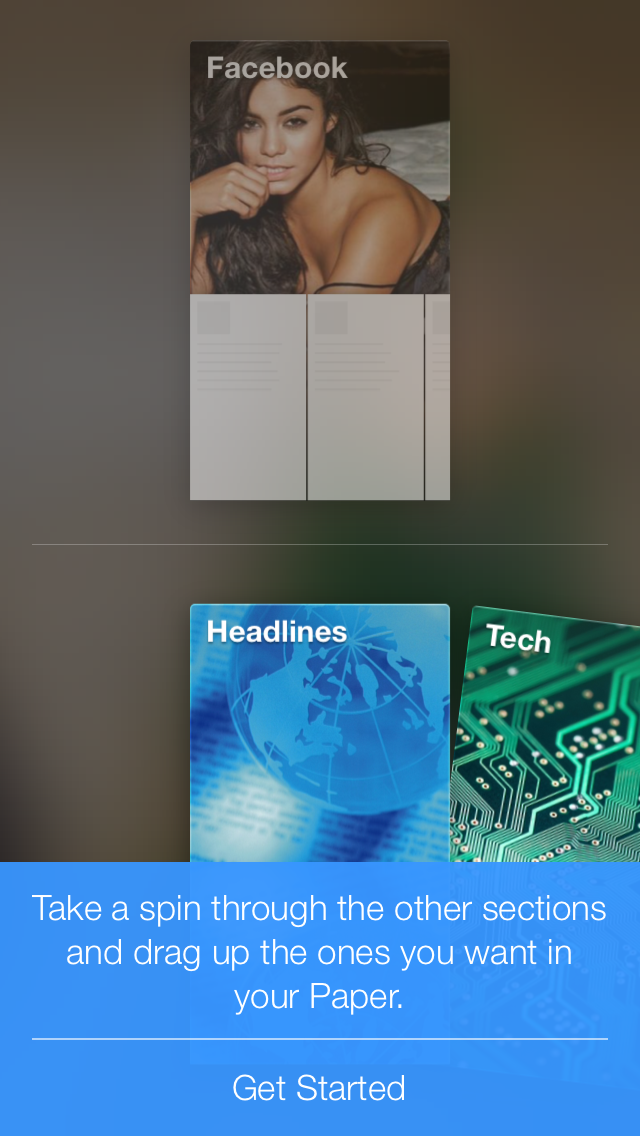
Facebook gestured based iOS app Paper


1. First load is video ! The app itself is 50+Mbs !!!


2. The Next Splash Screen is a Paper logo on a blur Background


3. Then its all voice guide which is titles block of which you can customise.


The Blue Bar is a Help to teach you how to use the app.


For now its is only available only in iOS and for user with USA as a country !
Hope it will come to android soon. And you can easily change the store of your iOS account in setting.

App Store Link
Change iOS App store country.


Thursday, September 12, 2013

iOS7 related changes and fixes


iOS 7 New Design Guidelines


Every app needs an app icon and a launch image. In addition, some apps need custom icons to represent app-specific content, functions, or modes in navigation bars, toolbars, and tab bars.
Unlike other custom artwork in your app, the icons and images listed in Table 38-1 must meet specific criteria so that iOS can display them properly. In addition, some icon and image files have naming requirements. (If you need to support standard-resolution iPhone or iPod touch devices, divide by 2 the high-resolution sizes listed below.)

Table 38-1Size (in pixels) of custom icons and images
Description
Size for iPhone 5 and iPod touch (high resolution)
Size for iPhone and iPod touch (high resolution)
Size for iPad (high resolution)
Size for iPad 2 and iPad mini (standard resolution)
App icon (required for all apps)
120 x 120
120 x 120
152 x 152
76 x 76
App icon for the App Store (required for all apps)
1024 x 1024
1024 x 1024
1024 x 1024
1024 x 1024
Launch image (required for all apps)
640 x 1136
640 x 960
1536 x 2048 (portrait)
2048 x 1536 (landscape)
768 x 1024 (portrait)
1024 x 768 (landscape)
Spotlight search results icon (recommended)
80 x 80
80 x 80
80 x 80
40 x 40
Settings icon (recommended)
58 x 58
58 x 58
58 x 58
29 x 29
Toolbar and navigation bar icon (optional)
About 44 x 44
About 44 x 44
About 44 x 44
About 22 x 22
Tab bar icon (optional)
About 50 x 50 (maximum: 96 x 64)
About 25 x 25 (maximum: 48 x 32)
Default Newsstand cover icon for the App Store (required for Newsstand apps)
At least 512 pixels on the longest edge
At least 256 pixels on the longest edge
Web clip icon (recommended for web apps and websites)
120 x 120
120 x 120
152 x 152
76 x 76
For all images and icons, the PNG format is recommended. You should avoid using interlaced PNGs.
The standard bit depth for icons and images is 24 bits—that is, 8 bits each for red, green, and blue—plus an 8-bit alpha channel.
You don’t need to constrain your palette to web-safe colors.


Link :
https://developer.apple.com/library/prerelease/ios/documentation/UserExperience/Conceptual/MobileHIG/IconMatrix.html#//apple_ref/doc/uid/TP40006556-CH27-SW1

Problem :
How to disable back swipe gesture for UINavigationControl UINavigationBar in iOS7

Solution :
Here is the code


if ([self respondsToSelector:@selector(edgesForExtendedLayout)])
        self.edgesForExtendedLayout = UIRectEdgeNone;

self.navigationController.interactivePopGestureRecognizer.enabled = NO;

1:   #pragma mark  
2:  #pragma mark Hide / Show TabBar  
3:  - (void) hideNavBar {  
4:    UINavigationBar *navBar = self.navigationController.navigationBar;  
5:    navBar.hidden = TRUE;  
6:    
 if (floor(NSFoundationVersionNumber) <= NSFoundationVersionNumber_iOS_6_1) {  
     DLog(@"< iOS6");  
     // Load resources for iOS 6.1 or earlier  
   } else {  
     DLog(@"iOS 7");  
     self.navigationController.interactivePopGestureRecognizer.enabled = NO; // Load resources for iOS 7 or later  
   }   
7: } 8: - (void) showNavBar { 9: UINavigationBar *navBar = self.navigationController.navigationBar; 10: navBar.hidden = FALSE; 11: } 12: #pragma mark 13: #pragma mark - View 14: - (void)viewDidLoad { 15: [super viewDidLoad]; 16: [self hideNavBar]; 17: }

http://stackoverflow.com/questions/17209468/how-to-disable-back-swipe-gesture-in-uinavigationcontroller-on-ios-7


Things Every App Must Do

  • Update the app icon.
    In iOS 7, app icons for high-resolution iPhone and iPod touch are 120 x 120 pixels; for high-resolution iPad, app icons are 152 x 152 pixels. (To learn more about all icon sizes, see “Icon and Image Sizes”.)
    Note that iOS 7 doesn’t apply shine or a drop shadow to the app icon. And, although iOS 7 still applies a mask that rounds the corners of an app icon, it uses a different corner radius than earlier versions of iOS.
  • Update the launch image to include the status bar area if it doesn’t already do so.
  • Support Retina display and iPhone 5 in all your artwork and designs, if you’re not already doing so.

Things Every App Should Do

  • Make sure that app content is discernible through translucent UI elements—such as bars and keyboards—and the transparent status bar. In iOS 7, view controllers use full-screen layout (to learn more, see Using View Controllers).
  • Redesign custom bar button icons. In iOS 7, bar button icons are lighter in weight and have a different style. For some design guidance, see “Bar Button Icons”.
  • Prepare for borderless buttons by reassessing the utility of button background images and bezels in your layout.
  • Examine your app for hard-coded UI values—such as sizes and positions—and replace them with those you derive dynamically from system-provided values. Use Auto Layout to help your app respond when layout changes are required. (If you’re new to Auto Layout, learn about it by readingAuto Layout Guide.)
  • Examine your app for places where the metrics and style changes of UIKit controls and views affect the layout and appearance. For example, switches are wider, grouped tables are no longer inset, and progress views are thinner. For more information on specific UI elements, see Bars and Bar Buttons,Content Views, Controls, and Temporary Views.
  • Adopt Dynamic Type. In iOS 7, users can adjust the text size they see in apps. When you adopt Dynamic Type, you get text that responds appropriately to user-specified size changes. For more information, see Using Fonts.
  • Expect users to swipe up from the bottom of the screen to reveal Control Center. If iOS determines that a touch that begins at the bottom of the screen should reveal Control Center, it doesn’t deliver the gesture to the currently running app. If iOS determines that the touch should not reveal Control Center, the touch may be slightly delayed before it reaches the app.
  • Revisit the use of drop shadows, gradients, and bezels. Because the iOS 7 aesthetic is smooth and layered—with much less emphasis on using visual effects to make UI elements look physical—you may want to rethink these effects.
  • If necessary, update your app to best practices for iOS 6—such as Auto Layout and storyboards—and ensure that the app doesn’t use deprecated APIs.
Now that you have a better idea of the types of things you need to do, learn more about changes in view controllers, tinting, and fonts by reading Appearance and Behavior.
SourceSource


Monday, June 17, 2013

Facebook iOS app for iOS7 without left side bar !

If you have used or seen the new iOS 7, then there is one risky think apple has added to the OS. That is system wide swipe gesture ie swipe left to go back ! Why is it so risky ? It is because when we left swipe most of the app will open the side menu ! The example is facebook !!!

Now lets look at the new Facebook app for ios 7 which easily solves the slide side view menu problem, and goes native to iOS with tab bar controllers !

But this is only a test UI not a final UI hence it looks like a quick and dirty fix rather then a final flat iOS7 style design. Lets say its a functional design rather then graphical one.